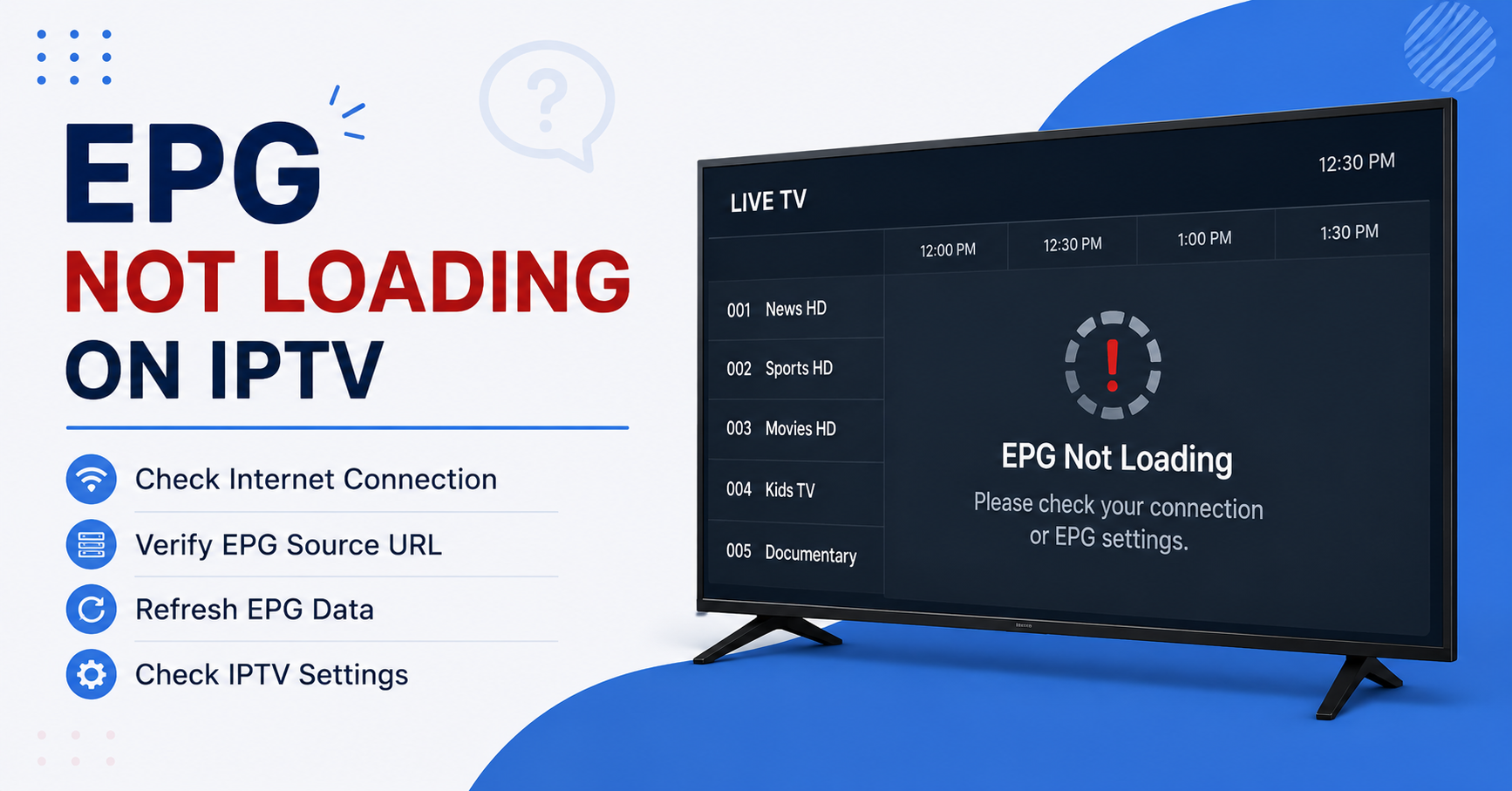
You sit down, open your player, and the channel plays fine — but where the programme guide should be, there’s nothing. Blank rows. “No Information.” A grid full of dashes. For something that’s supposed to make IPTV feel like proper television, a dead EPG is one of the most quietly frustrating problems out there.
The good news? It’s almost never the channel that’s broken. It’s the guide data — and guide data is fixable. Below are eight things worth checking, roughly in the order most likely to actually solve it.
This Guide EPG Not Loading on IPTV Clear your doubts.
Start by Understanding What the EPG Actually Is
EPG stands for Electronic Programme Guide. Think of it as a separate file your player downloads in the background — usually in a format called XMLTV — that tells your app what’s showing, when, and on which channel. Your live streams come from one source; your guide data often comes from another. That separation is the single biggest reason EPGs fail. The stream can be perfectly healthy while the guide URL behind it is slow, expired, or misconfigured.
Once you accept that the guide is its own moving part, the fixes start making sense.
EPG Not Loading on IPTV
Fix 1: Force a Manual EPG Refresh
Most players only pull guide data on a schedule — sometimes once every 24 hours. If your subscription was activated recently, or you just added the playlist, the EPG may simply not have synced yet.
In TiviMate, head to Settings, then EPG, and tap the refresh option. In IPTV Smarters Pro, log out and back in, or clear the EPG cache from settings. OTT Navigator has a dedicated “Update EPG now” button buried in its TV Guide settings. Give it a few minutes — large guide files can take time to process on slower devices.
If a manual refresh fills the grid even briefly, your data is fine and the issue is just sync timing.
Fix 2: Check Whether the EPG URL Is Even Loaded
A surprising number of “broken EPG” complaints come down to no EPG source being entered at all. Some setups assume the M3U playlist carries guide data automatically. It usually doesn’t.
Open your player’s EPG settings and confirm there’s an actual XMLTV URL sitting there. If the field is empty, that’s your answer. A IPTV reseller-grade panel like the one behind britishseller.co.uk supplies a dedicated EPG link alongside the playlist — paste it in, save, refresh, and the grid should populate.
Pro Tip: Keep your M3U URL and your EPG/XMLTV URL saved somewhere separate, like a notes app. People lose hours hunting for a guide link they were handed once and never wrote down.
Fix 3: Match Your Channel IDs to the Guide
Here’s the sneaky one. Your EPG might be downloading perfectly — but if the channel identifiers in your playlist don’t match the IDs in the guide file, the data has nowhere to land. The result looks identical to a missing EPG: streams play, guide stays blank.
This is a tvg-id mismatch. In players that allow it, you can manually map a channel to the correct guide entry. In TiviMate, long-press a channel, choose “Edit,” and select the matching EPG source. If only some channels show guide data and others don’t, this mismatch is almost certainly your culprit rather than a download failure.
Fix 4: Rule Out Time Zone and Clock Problems
If your guide shows programmes but they’re all shifted — the news airing three hours early, primetime showing at lunch — your device clock or time zone offset is the issue, not the EPG itself.
Check that your device is set to the correct time zone and that automatic date/time is switched on. Some players also have a manual “EPG time offset” or “time shift” setting; if someone fiddled with it, reset it to zero and let the device handle the rest. A guide that’s present but misaligned is a clock problem wearing an EPG costume.
Fix 5: Test Your Connection and DNS
Guide files are larger than people expect, and a flaky connection can interrupt the download halfway, leaving you with partial or no data. Streams, which buffer continuously, often survive conditions that quietly kill a one-shot EPG download.
Restart your router. If you’re on Wi-Fi and the device sits far from the router, that weak signal could be the bottleneck. DNS matters too — if your provider’s DNS is struggling to resolve the EPG host, switching your device to a public resolver like Cloudflare (1.1.1.1) or Google (8.8.8.8) sometimes clears a stubborn guide failure that looks unrelated to the network.
Fix 6: Clear the Cache or Reinstall the Player
Players store EPG data locally so they don’t re-download it every launch. When that cached file gets corrupted — interrupted update, app crash, storage hiccup — the guide can break even though the source is healthy.
Clear the app’s data or cache through your device settings, then re-add your playlist and EPG URL. If clearing doesn’t help, a clean reinstall forces the player to rebuild its guide database from scratch. It feels heavy-handed, but it resolves a real category of EPG corruption that nothing else touches.
Fix 7: Confirm the Problem Isn’t on the Server Side
Sometimes you’ve done everything right and the guide still won’t load — because the EPG host itself is down or the data hasn’t been updated by the provider. This is out of your hands, but it’s easy to confirm.
If the same setup worked yesterday and nothing changed on your end, the source is the likely suspect. A quick message to your provider settles it. With a properly maintained panel, EPG hosting is monitored and refreshed regularly, which is exactly why where you buy your subscription matters as much as how you configure it. Reliable guide data is part of what you’re paying for, not a bonus.
Fix 8: Reduce the EPG Load Where You Can
On lower-powered boxes — older Android units, budget sticks — an enormous guide file covering hundreds of channels can simply overwhelm the device. The EPG either loads painfully slowly or gives up entirely.
If your player allows it, limit guide data to your favourite channels rather than the full lineup, or shorten the number of days of EPG it stores (three days instead of fourteen, for instance). Less data to parse means a faster, more reliable load on modest hardware.
A Quick Diagnostic Order
If you’d rather not work through all eight blind, this sequence catches most cases fastest: refresh manually, confirm the EPG URL exists, check tvg-id matching, verify the clock, then test the connection. Cache clears and reinstalls come next, and server-side issues are what’s left once you’ve eliminated everything you control.
When to Stop Troubleshooting and Ask
There’s a point where DIY stops being efficient. If the guide loads on one device but not another with identical settings, or it works for one user on a panel but not their customers, the pattern itself is diagnostic — and a provider who knows their own infrastructure can pinpoint it in minutes. UK IPTV Resellers running storefronts like britishreseller.com or uksubscription.co.uk lean on support precisely because guide-data quirks are often quicker to escalate than to chase alone.
A missing EPG rarely means a broken service. Far more often it’s a sync delay, an empty URL field, or a mismatched channel ID — small, fixable things standing between you and a full programme guide. Work through these eight checks in order, and in nearly every case the grid fills back in. And when it doesn’t, knowing it’s a server-side issue is its own kind of answer: you’ve done your part, and the fix sits with whoever hosts your data.