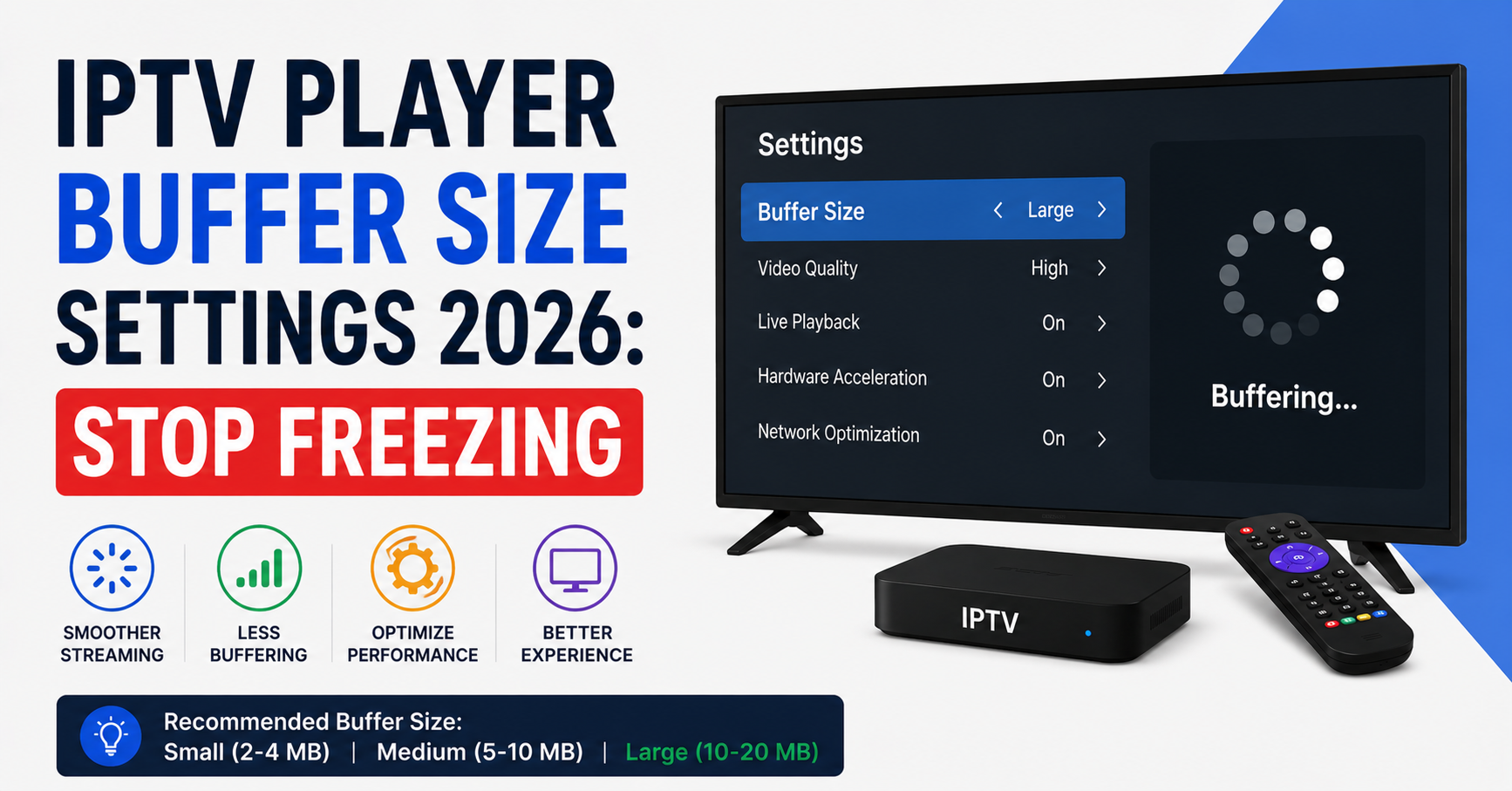
Most people get buffering wrong on the very first guess. They crank the buffer to the maximum, assume bigger is safer, and then wonder why their stream now takes eleven seconds to start and still stutters during the second half of a match. That instinct is the single most common mistake I’ve watched subscribers make, and getting your IPTV Player Buffer Size Settings 2026 dialled in correctly is less about “more” and more about matching the buffer to your actual connection and the app you’re running.
A buffer is just a holding tank. Your player downloads a few seconds of video ahead of what you’re watching and stores it, so that when your connection hiccups, there’s a reserve to keep playback smooth. Too small, and every tiny network wobble freezes the picture. Too large, and you trade away responsiveness, channel-switching speed, and sometimes stability itself. The right UK Reseller IPTV Player Buffer Size Settings 2026 sit in a narrow, sensible band that most apps never default to correctly.
What a buffer actually does when your line drops
Picture a 4 Mbps stream and a connection that dips for half a second every few minutes. With a one-second buffer, that dip empties the tank and you freeze. With a four-second buffer, the dip is invisible. But push to twenty seconds and you’ve created a new problem: when you change channels, the player has to fill that entire tank before showing anything, so zapping feels sluggish and unresponsive.
The goal is the smallest buffer that survives your worst connection moment. Not the biggest.
Pro Tip: Test your buffer during the exact conditions you’ll actually watch in — evening peak hours, with other devices active on the WiFi. A buffer tuned at 2pm on an empty network will fail you at 8pm during a live match. Network behaviour at peak is a completely different animal.
Why your connection type changes everything
Here’s something rarely stated plainly: there is no universal correct buffer value. The number that works depends entirely on what’s underneath it.
| Connection Setup | Suggested Buffer | Why |
|---|---|---|
| Wired ethernet, fast fibre | 1–3 seconds | Stable, low jitter, minimal reserve needed |
| Reliable WiFi 5GHz | 3–5 seconds | Occasional interference, small cushion helps |
| Congested 2.4GHz WiFi | 5–8 seconds | Frequent micro-drops need more reserve |
| Mobile data / 4G | 8–10 seconds | Variable latency, larger buffer smooths spikes |
| Powerline / range extender | 6–10 seconds | Unpredictable, needs generous cushion |
A reseller once contacted me convinced his entire server was failing because a cluster of customers reported constant freezing. After reviewing dozens of their setups, almost every freezing complaint traced back to powerline adapters and cheap range extenders, not the stream at all. The buffer settings had never been touched. That pattern repeats endlessly — people blame the source when the last three metres of their own network are the real culprit.
Setting buffer in the apps people actually use
Each player handles this differently, and the labels are inconsistent enough to cause real confusion.
TiviMate keeps it under Settings > Playback. The “buffer size” slider there controls how many seconds it preloads. Start at 3 seconds on wired, 5 on WiFi.
IPTV Smarters / Smarters Pro buries it in player settings, and the default is usually too aggressive. Most users do better dropping it slightly rather than raising it.
VLC exposes a network caching value in milliseconds — so 5000 means five seconds. The default 1000ms (one second) is far too low for live IPTV and causes most of the freezing people blame on VLC.
Kodi uses an advancedsettings.xml file with a cache value in bytes, which trips up newcomers constantly. A 20971520 value gives roughly 20MB of cache, a reasonable starting point.
Pro Tip: If your app offers a separate “buffer before playback” and “buffer during playback,” set the startup buffer lower than the running buffer. Channel switching stays fast while playback stays protected. Almost nobody splits these two, and it’s the cleanest way to get smooth IPTV Player Buffer Size Settings 2026 without sacrificing zapping speed.
The freezing nobody can fix by buffering
This is the part most guides skip entirely, and it frustrates me because it sends people down the wrong path for days.
A buffer cannot fix a problem that isn’t about timing. If your actual download speed is below what the stream needs, no buffer on earth will help — the tank drains faster than it fills and you’ll freeze no matter what. Likewise, if the freezing happens at the exact same scene every replay, that’s a source issue, not your settings. And during major sports events, when a single match pulls enormous simultaneous load, the bottleneck is rarely on your end.
Run a checklist before touching buffer values:
- Confirm your real speed with a wired test — not the speed you pay for, the speed you actually get at peak
- Watch whether freezing is random (network/buffer) or repeats at fixed points (source)
- Disable hardware acceleration temporarily if the picture freezes but audio continues
- Try a second device on the same connection to isolate whether it’s the app or the line
- Check whether one channel freezes or all of them — one channel is a source problem
Pro Tip: Audio continuing while video freezes almost always means a decoder or hardware-acceleration problem, not a buffer one. We see this misdiagnosed constantly. Toggle hardware decoding off before you ever touch a buffer slider.
How resellers should think about buffering complaints
For any IPTV reseller, buffering tickets are the single largest support category, and most of them aren’t server problems at all. A panel owner who understands buffer behaviour can close tickets in minutes instead of escalating phantom outages.
The smart move for a reseller panel operator is education at the point of sale. When a sub-reseller onboards a new customer, a one-page buffer guide tailored to common devices prevents the majority of early complaints. I’ve watched a single credit reseller cut their support volume noticeably just by sending buffer presets alongside login details.
| Cheap Reseller Support Approach | Professional Reseller Approach |
|---|---|
| Blames every freeze on the customer | Diagnoses connection vs source vs buffer |
| No onboarding guidance | Sends device-specific buffer presets |
| Escalates everything to the supplier | Resolves buffer issues at the panel level |
| Reactive only | Proactive setup education |
| Loses customers to “it doesn’t work” | Retains via fast, accurate fixes |
An IPTV operator who trains their sub-resellers to triage buffering properly protects the whole IPTV distribution network from churn. One IPTV business owner I worked with traced nearly a third of his cancellations to unresolved buffering frustration that was never actually a server fault. Panel credits spent acquiring those customers were simply wasted. For resellers wanting a stable supply foundation underneath good support practices, a dependable source like britishreseller.com removes one major variable from the equation, leaving buffer tuning as a customer-side task the IPTV reseller panel can confidently handle.
Pro Tip: If you run a reseller panel, log which devices generate the most buffering tickets. Within a month you’ll spot a pattern — usually one or two specific cheap Android boxes — and you can warn new customers off them before they ever buy. That single dataset is worth more than any generic buffer chart.
Device-specific quirks worth knowing
Hardware matters more than people expect. A cheap Android TV box with limited RAM physically cannot hold a large buffer without crashing, so the “set it high” advice actively breaks low-end devices. Firestick models throttle under heat during long sessions, which looks exactly like a buffer problem but isn’t. Smart TVs running built-in apps often have locked or hidden buffer settings entirely.
The step-by-step for a new device:
- Start with the buffer at your app’s default
- Watch a busy live channel for ten minutes at peak time
- If it freezes, raise the buffer by two seconds and retest
- Repeat until stable, then stop — don’t keep climbing
- If raising the buffer never helps, the problem is speed or source, not buffer
What changed for 2026
Buffering behaviour isn’t static. Through 2025 and into 2026, more aggressive ISP traffic management and fingerprinting started affecting how streams flow, introducing micro-interruptions that didn’t exist before. The practical effect is that buffer values which worked fine two years ago sometimes need a small bump now. A wired connection that ran happily on a two-second buffer may now want three. This is why I tell people to revisit their IPTV Player Buffer Size Settings 2026 rather than assuming an old config still holds — the network underneath them has quietly shifted.
A VPN adds its own latency layer too, and if you’ve started using one to sidestep ISP throttling, expect to add a couple of seconds of buffer to compensate for the encryption overhead.
Frequently Asked Questions
What are the best IPTV Player Buffer Size Settings 2026 for a Firestick?
On a Firestick over WiFi, start around 4–5 seconds and watch a live channel at peak. Firesticks throttle when hot, so if freezing appears only after long sessions, suspect overheating rather than buffer. A wired ethernet adapter usually lets you drop the buffer to 2–3 seconds with better results than any buffer increase.
Does a bigger buffer always reduce freezing?
No, and this is the most common misconception. A larger buffer only helps with short, random network drops. If your actual speed is below the stream’s requirement, or the freeze is a source-side fault, a bigger buffer just delays the same freeze. It also slows channel switching, so oversizing creates new problems while solving none.
What buffer value should I use on a wired connection?
Wired ethernet on decent broadband is the easiest case — 1 to 3 seconds is usually plenty. The connection is stable with low jitter, so you don’t need a large reserve. Starting low also keeps channel switching fast. Only raise it if you see freezing during genuine peak-hour congestion.
How do IPTV Player Buffer Size Settings 2026 differ on mobile data?
Mobile and 4G connections have variable latency, so they need a more generous buffer than home broadband — typically 8 to 10 seconds. The larger cushion absorbs the latency spikes that come with cellular networks. Expect to retune if you move between strong-signal and weak-signal areas regularly.
Why does my audio keep playing while the video freezes?
That symptom points to a decoder or hardware-acceleration issue, not a buffer one. Try toggling hardware decoding off in your player settings. It’s one of the most frequently misdiagnosed problems — people raise the buffer repeatedly when the actual fix is switching the decoding mode.
As a reseller, how do I reduce buffering support tickets?
Send device-specific buffer presets with every new login. Most buffering tickets a reseller panel receives are connection or device issues, not server faults. Training sub-resellers to ask three questions — wired or WiFi, which device, one channel or all — resolves the majority before they ever escalate to you as the panel owner.
Can a VPN cause buffering?
Yes. A VPN adds encryption overhead and routing latency, which can introduce small interruptions. If you start using a VPN, add roughly two seconds to your existing buffer to compensate. Choosing a server geographically closer to you also reduces the added latency that triggers buffering.
How often should I revisit my buffer settings?
Review them whenever your setup changes — new device, new connection, or a new VPN — and at least once a year. ISP traffic management shifted noticeably into 2026, so configs that ran smoothly before may need a small increase now. Network conditions underneath you change quietly over time.
Final Word
The biggest lesson after years of fielding freezing complaints is counterintuitive: most buffering problems are not buffer problems. Dialling in your IPTV Player Buffer Size Settings 2026 matters, but the real skill is knowing when the buffer is the answer and when it’s a distraction from a speed, device, or source issue. Get that diagnostic instinct right and you’ll fix in two minutes what others chase for two days.
Subscriber Checklist
- Run a wired speed test at peak hours, not off-peak
- Start buffer low and raise by 2 seconds only if freezing occurs
- Toggle off hardware acceleration if audio plays but video freezes
- Check if one channel or all channels freeze before adjusting anything
- Add 2 seconds to buffer if running a VPN
Reseller Checklist
- Send device-specific buffer presets with every new login
- Log which devices generate the most buffering tickets
- Train sub-resellers to triage wired vs WiFi vs source first
- Stop escalating connection-side issues to your supplier
- Track churn linked to unresolved buffering frustration
Sub-Reseller Checklist
- Ask three questions per ticket: connection, device, one channel or all
- Keep a saved buffer preset list for common devices
- Flag repeat cheap-box complaints to the panel owner
- Resolve buffer issues before passing them upward
- Confirm customer speed before blaming the stream
The single most valuable habit you can build is diagnosis before adjustment. A buffer slider is a tool, not a cure, and the operators who understand that difference are the ones whose streams stay smooth when everyone else is staring at a frozen screen.